Every team has information that matters internally but does not belong in a standard HR profile.
Maybe you want to track office location, start date, certifications, contract type, regions covered, languages spoken, or any other field that helps your team understand who does what. Until now, that kind of information often lived in spreadsheets, side notes, or inconsistent free text.
Custom Attributes are designed to fix that.
With this feature, you can add structured fields to employee profiles in Appose, choose the right field type for each one, and keep that information editable directly where your team already works.
This post is both an announcement and a practical guide. It explains what the feature does, how to set it up, how each field type behaves, and what to expect when your team starts using it.
Attributes let you define your own fields for employee profiles.
Instead of being limited to a fixed set of profile fields, you can create attributes that reflect how your organization actually works. Once created, those attributes become part of the employee profile and can be filled in and maintained there.
To create and manage attributes:
Settings → Employee Attributes
To fill in attribute values for a person, open the employee profile. That means setup happens centrally in Settings, while day-to-day usage happens on the employee profile itself.
Using Custom Attributes is a simple three-step process.
Go to Settings → Employee Attributes and click New Attribute.

From there, you can either:
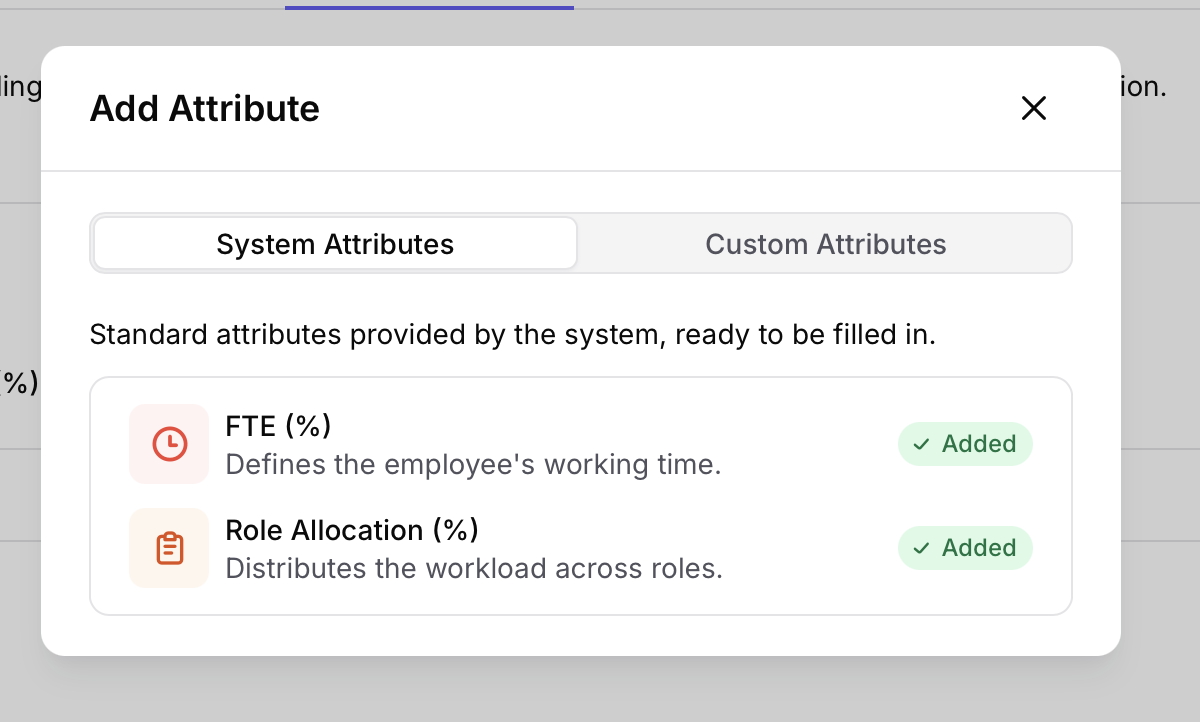
Pick the field type that best matches the information you want to store.
This is important because the field type determines how users enter data, how consistent the values stay, and how useful the data becomes later for filtering and organization.

Once the attribute exists, it appears on employee profiles and in profile editing. Your team can then enter values directly in Appose.

Besides Attributes, we have also fixed several bugs and introduced meaningful UX improvements across the app:
+ In Organization > Job Roles, the tabs have been reordered in job role details so that Employees tab now appears first. This makes it easier to access employee information right away, without needing an extra click each time a job role is opened.
+ Permission Groups now has its own dedicated tab in Settings, rather than being grouped together with Accounts. This creates a cleaner structure and makes navigation more intuitive. We have also improved the permission group detail page by organizing permissions into sections, making them easier to browse and find what you are looking for.
+ Employee account management has also been moved to Settings. From there, you can add employees, invite them to create an account when needed, filter employees based on whether they already have an account, and invite multiple employees at once instead of one by one.
Thanks for using Appose—and thanks for helping us make it better.
— The Appose Team


